
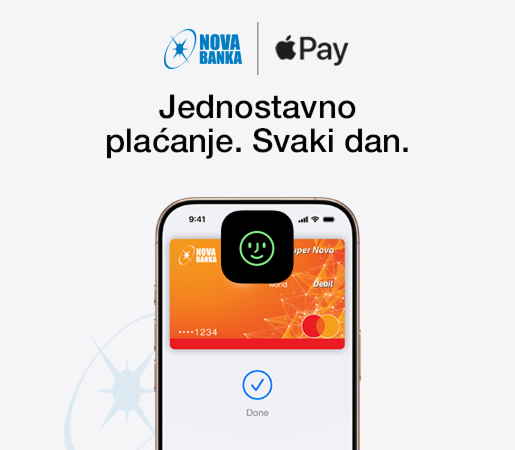
Apple Pay lets you make purchases using your Nova Bank Mastercard on any Apple device - just as you would use a physical card - in stores, online stores and within apps.
Apple Pay is built into iPhone, Apple Watch, Mac, iPad and Apple Vision Pro.
When you add your Nova Bank Mastercard to Apple Wallet on your iPhone, you'll have the option to easily add it to your other Apple devices as well.
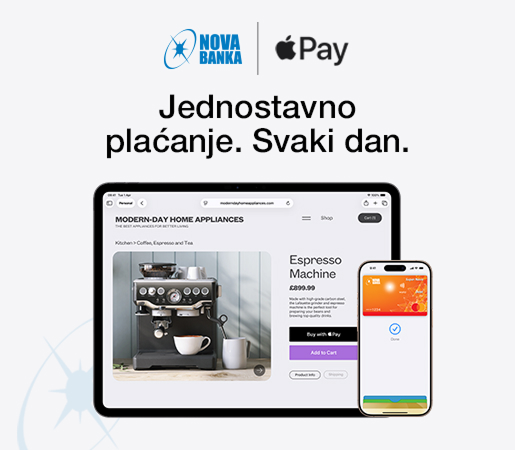
Apple Pay is accepted by most merchants worldwide. Look for  or the contactless payment symbol at checkout and pay with your Nova Bank Mastercard.
If you're paying on a computer that doesn't use Safari or Mac operating systems, click on and scan the code that appears on the screen using your iPhone.
Apple Pay lets you skip entering your address or CVC code when paying - pay with your Nova Bank Mastercard with just a simple tap.
Open the Smart Nova Mobile app and click on "Cards" in the main menu.
Click on  on the card you want to add to Apple Wallet.
Follow the on-screen steps to add your card.
Open the Apple Wallet app.
Click on the (+) sign in the upper right corner.
Select the "Debit or Credit Card" option.
The card can be added by:
Placing the back of the card on the iPhone
Manual entry
Scanning data via the camera
Open the Apple Watch app on your iPhone.
Click on "My Watch" at the bottom of the screen.
Select "Wallet & Apple Pay".
Click on "Add Card" or, if you already have a card added on your iPhone, click on it.
Follow the instructions to add the card.
When you use your Nova Bank Mastercard with Apple Pay, you enjoy the benefits you love - just as you would with your physical card.
Apple Pay is a digital payment method that lets you pay quickly, securely and easily using your iPhone, Apple Watch, iPad or Mac - without needing a physical card. You add your card to the Apple Wallet app and make contactless payments in stores, online or within apps.
To use Apple Pay, you need:
A list of compatible iPhone, Apple Watch, iPad and Mac devices is available on the official Apple website. To add a card to the Apple Wallet app, screen lock protection must be enabled on the device. If screen lock is not set up, the card cannot be added to Apple Pay. Also, if you disable your passcode or other device protection, the card will automatically be removed from Apple Pay. To use it again, you need to add the card back to the Apple Wallet app.
Open Apple Wallet and select your Mastercard to add it. In just one step, you can also add the card to your other Apple devices.
Apple Pay is currently available for the Nova Bank Mastercard.
All Apple Pay transactions are confirmed directly on the device using a passcode, pattern, fingerprint or facial recognition. Additional security comes from the fact that tokenized card data cannot be linked to the actual physical card data, as it is not stored on the device or shared during payment. Thanks to this, even if you lose your phone, it is not possible to access the actual card information.
Yes, one card can be linked to a maximum of 10 Apple devices.
When registering a payment card on a mobile device, it will be tokenized (the card number is replaced with a unique identification element - a token), which further enhances the security aspect of the entire service.
No, there is no fee or additional cost for using Apple Pay.
No, the PIN linked to the physical card is never used as an authentication method when paying with Apple Pay. Apple Pay payments are always authenticated using one of the screen unlock methods set on the mobile device (passcode, pattern, fingerprint or facial scan).
In the Apple Wallet app, select the card you want to deactivate. Select Card Details and at the bottom of the screen, where the card details are displayed, select "Remove This Card". Do the same through the watch settings if the service is also activated on the watch.
Paying with a mobile phone or tablet
Paying with Apple Watch
Paying online or in an app
In case of loss or theft of a device with Apple Pay, the cardholder is obliged to notify the bank immediately. We also suggest activating the lost device option through the Find My app. All cards will be temporarily blocked. No one can use Apple Pay on your iPhone without your Face ID, Touch ID or passcode.
No, an internet connection is not required.


 EXCHANGE RATE
  BRANCHES AND ATMs
  F.A.Q
F.A.Q
 CONTACT